
 LOG IN
Below you will find a range of training, instructional and support information for using the RIW System. You can browse the various categories, or type keywords into the search box. If you are new to RIW, please view the Getting Started category.
Knowledge Centre Search
How to view and export a scheduled eLearning report.
Certain reports can be scheduled on the RIW e-Learning platform (https://elearning.riw.net.au/) related to course/content completion. This article outlines how to access the report through the provided email and export the relevant report if required.
This instruction applies to the following user roles:
- RIW eLearning User
Step 1: Open your "Scheduled Report Available" email
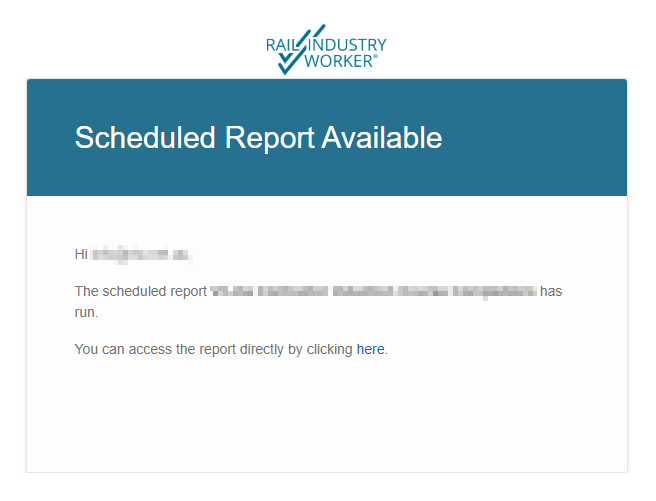
Open the "Scheduled Report Available" email and click on the link that says You can access the report directly by clicking here.
Step 2: Log in using your username/password
Enter your username/RIW number and password to log in. If you have never logged in or have forgotten the password, please follow the instructions "How do I reset my eLearning password?" to reset it.
Step 3a: View and export "Content Completion Report"
The report will show the course completion information. To export the report as a csv please click on the right side of the page below the graph.
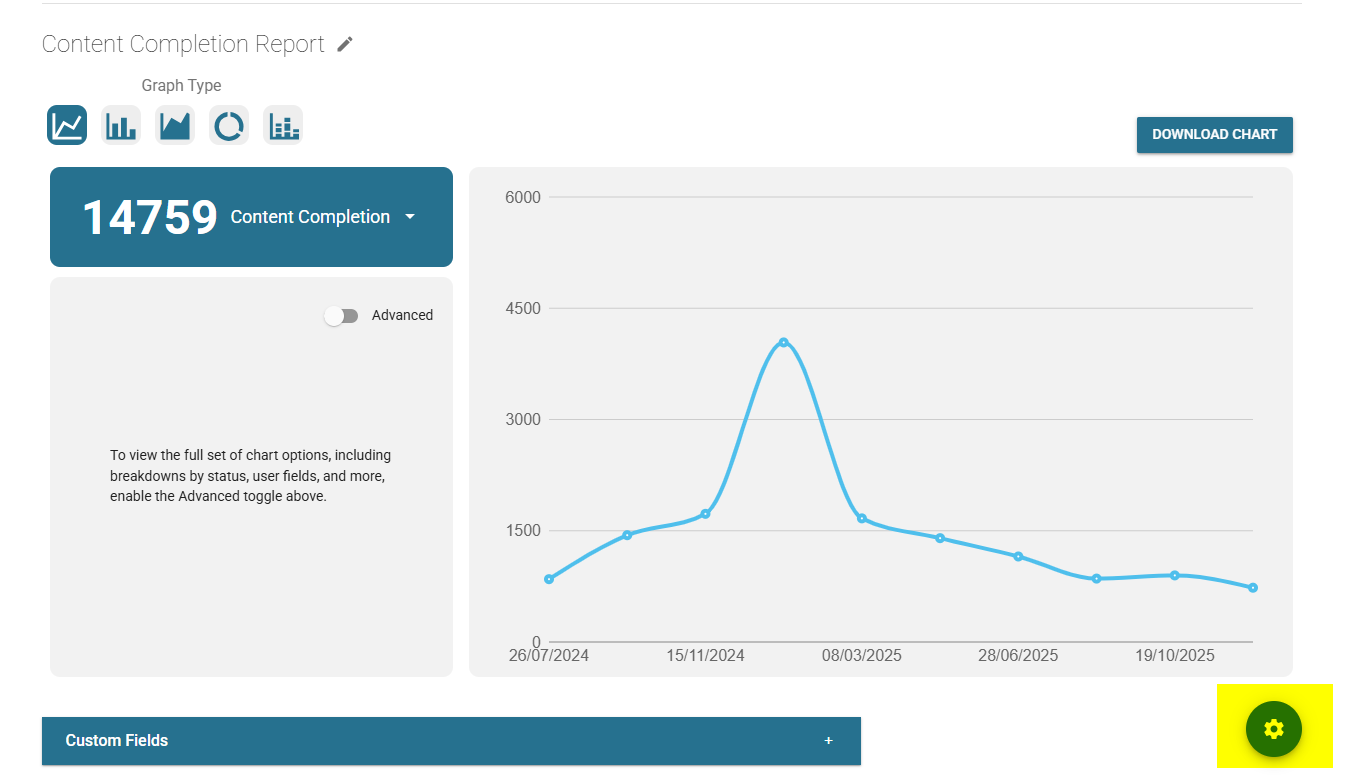
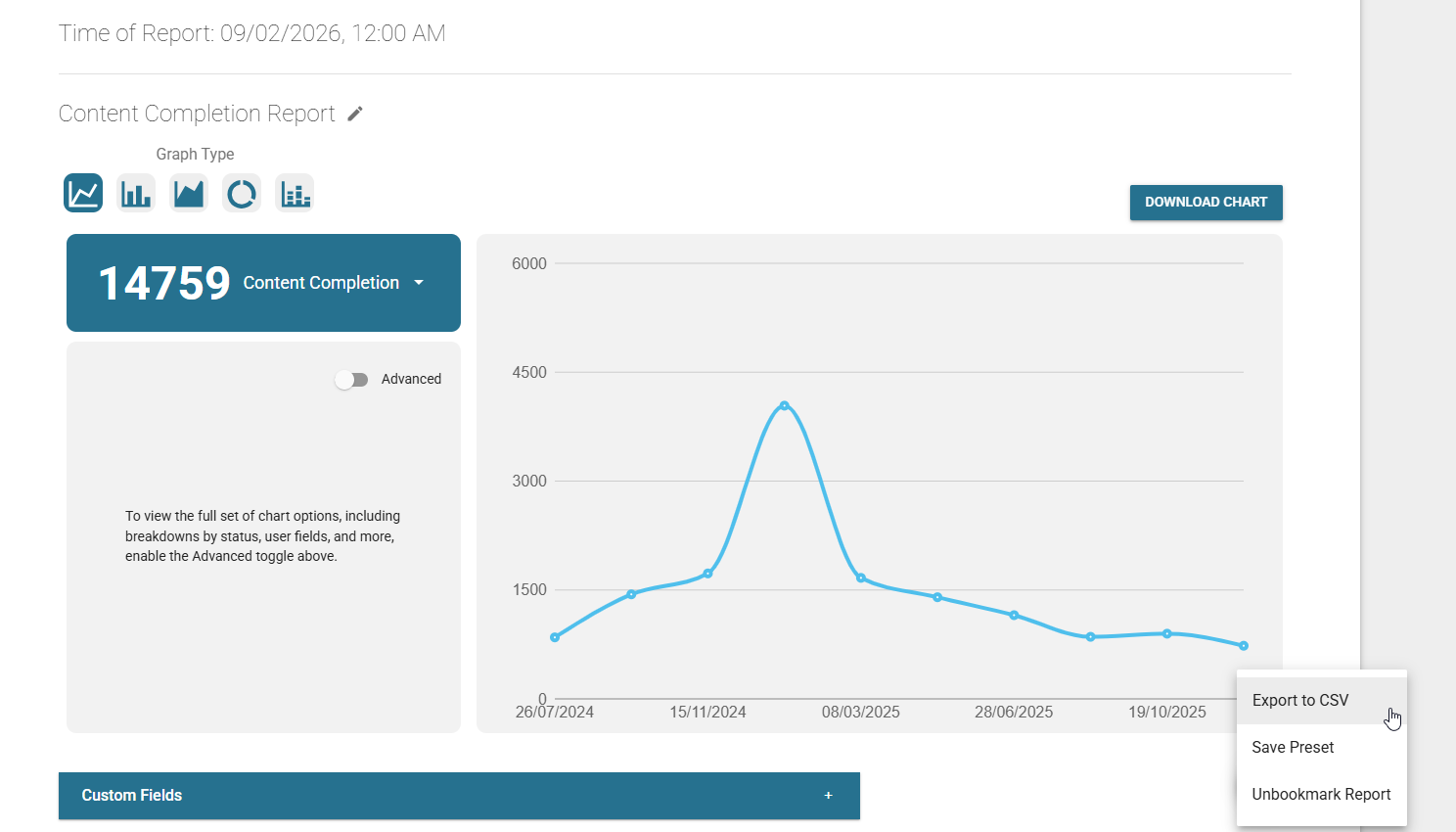
When you click on the cog it will pop up a context menu where you can select "Export to CSV". Then you can save the csv file in your desired location.
Step 3b: View and export "Form Report"
The report will show the survey completion information. To export the survey responses select the "Submissions" section to view the responses.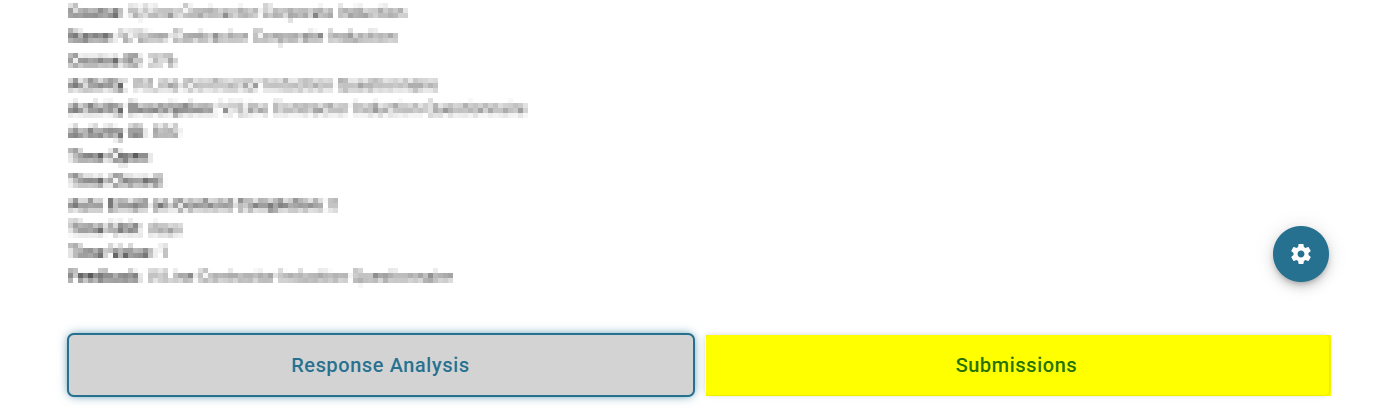 In the "Submissions" section click on "Additional Settings" and then ensure "Show Responses" is ticked.
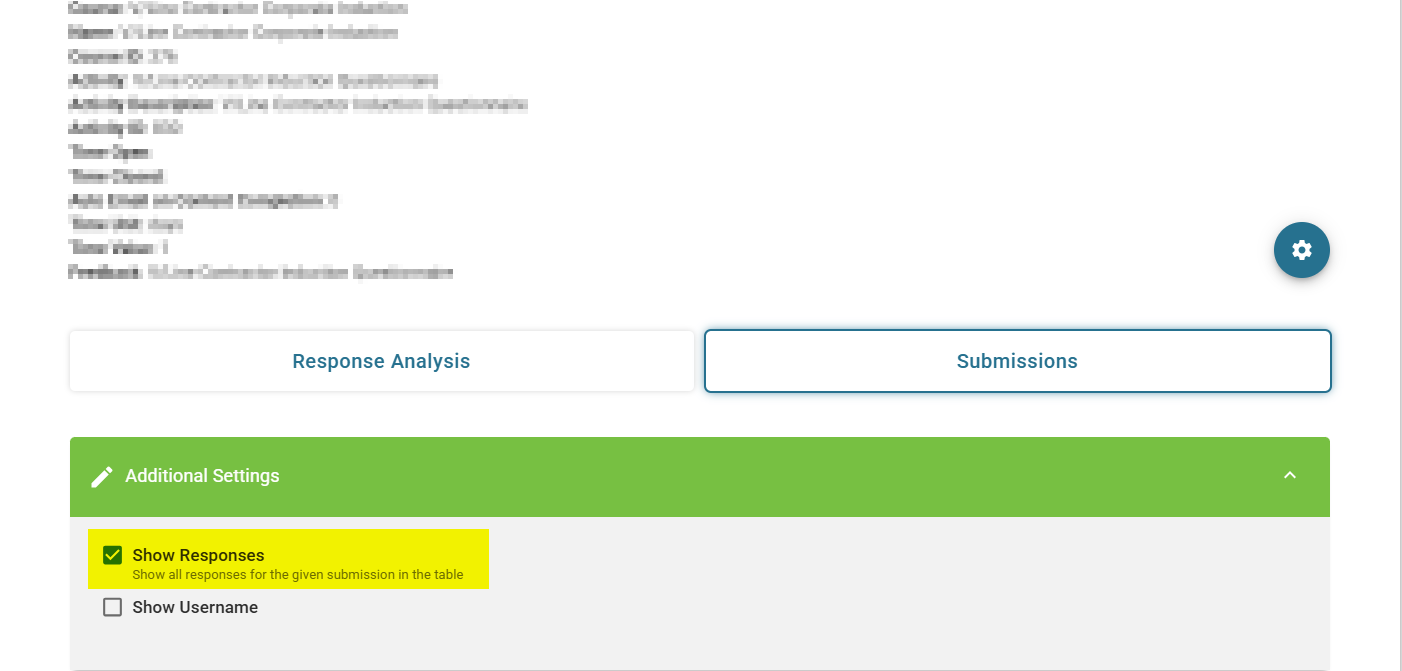
Afterwards scroll down to the very bottom and click on "Export to CSV. Then you can save the csv file in your desired location.
Article link:
https://support.riw.net.au/support/solutions/articles/51000513014
Did you find it helpful? Yes No
Send feedback