 LOG IN

Below you will find a range of training, instructional and support information for using the RIW System. You can browse the various categories, or type keywords into the search box. If you are new to RIW, please view the Getting Started category.
Knowledge Centre Search
LMS Instructions
How to connect an Employer Competency to an Enterprise LMS course
Learn how to efficiently configure new employer competencies within the Acorn LMS platform. This guide walks you through the essential steps to setup award settings, and e-learning course associations.
If you are unable to watch the video or would prefer not to, please refer to the step-by-step guide in the images below.
eLearning Course Selection
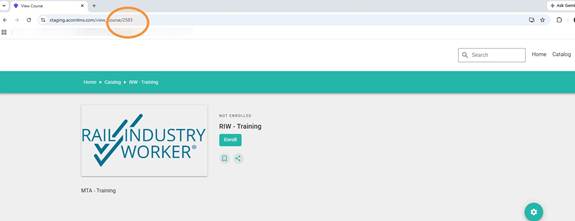
- Navigate to your Enterprise LMS Instance course you would like to link to RIW - Note down the course code at the end of the URL
- Switch to the RIW - Employer Admin Home tab.
Competency Setup
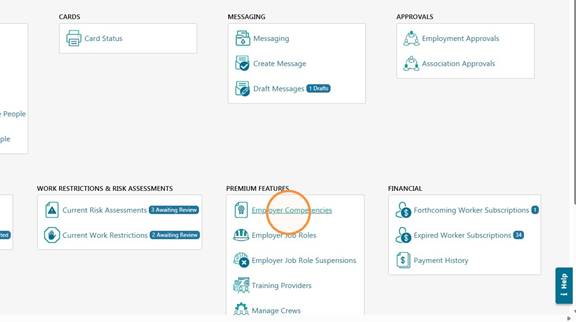
- Click Employer Competencies.
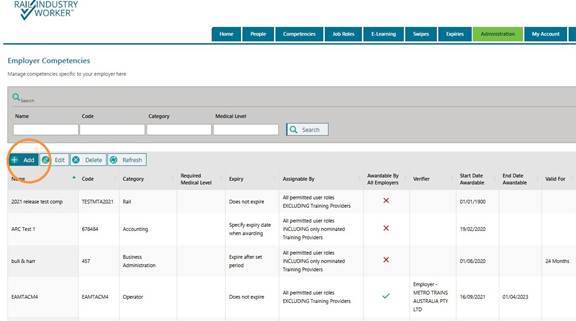
- Click Add.
Competency Details
- Enter all the required competency details
- Fill in all the required fields with the competency details.
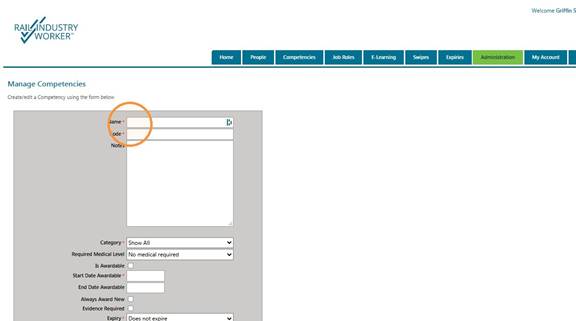
- Enter the course code
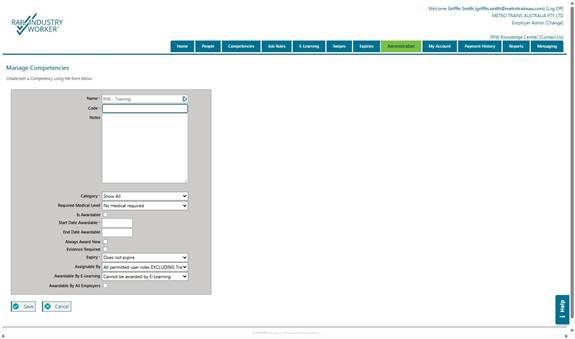
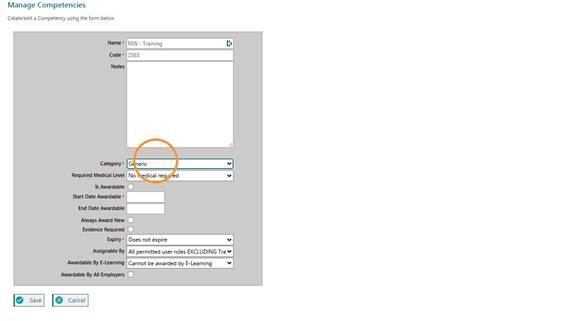
- Select a course Category from the dropdown.
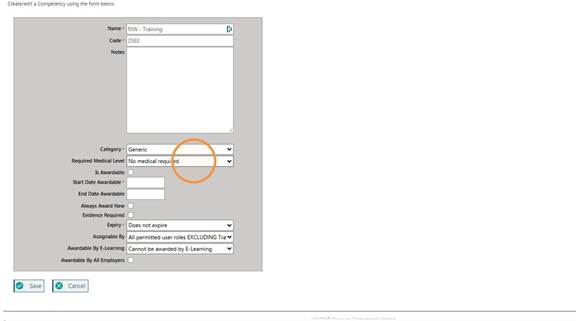
- Enter the Required Medical Level.
- Select the Is Awardable checkbox.
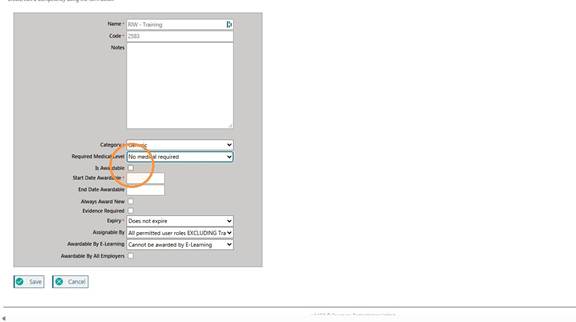
- Select the start date from the date picker.
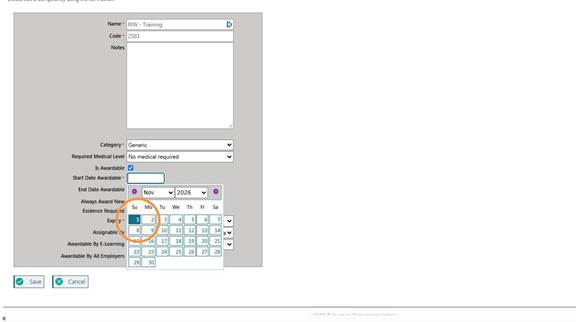
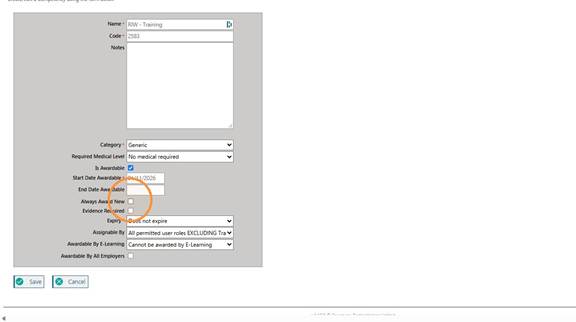
- If you want a new training record to be created each time a course is completed, rather than updating the existing record when a refresher competency is completed, select "Always Award New".
- Select Must be awarded by E-Learning or can be awarded from the E-Learning dropdown, will
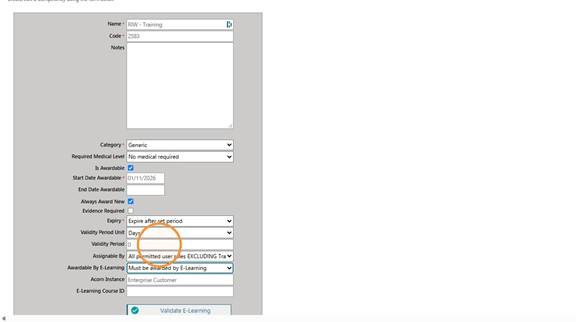
- Select the desired expiry period of the competency.
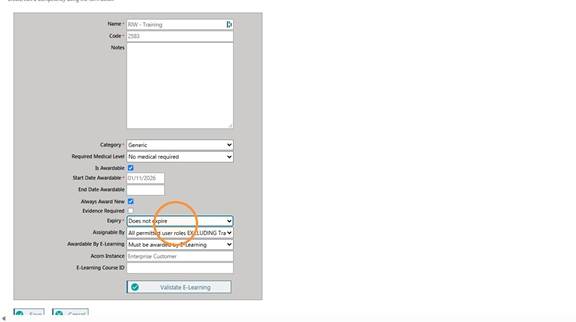
- Select the Assignable By dropdown.
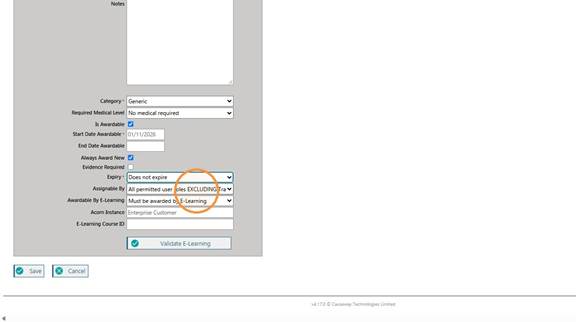
E-Learning Validation
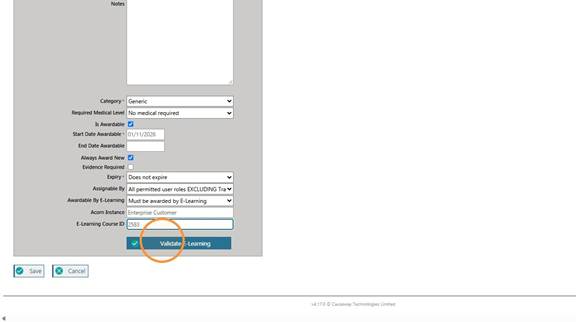
- Click the E-Learning Course ID field.
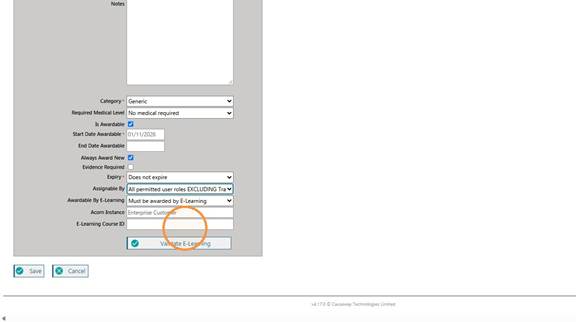
- And enter the course ID number from your Enterprise LMS (This ID is found in the URL of the selected course in your enterprise LMS)
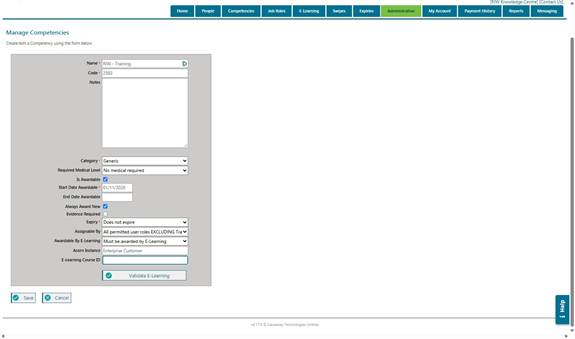
- Click Validate E-Learning.
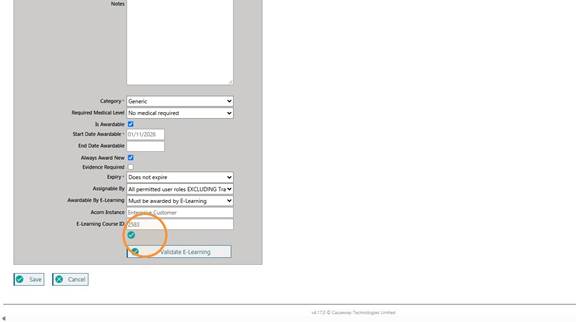
- Once the tick appears, you have successfully connected the eLearning course to an RIW employer competency.
Please Contact The RIW support team if you have any questions.
Support Team
1300 101 682
info@riw.net.au
Did you find it helpful? Yes No
Send feedbackSorry we couldn't be helpful. Help us improve this article with your feedback.