
 LOG IN
Below you will find a range of training, instructional and support information for using the RIW System. You can browse the various categories, or type keywords into the search box. If you are new to RIW, please view the Getting Started category.
Knowledge Centre Search
My account is locked. What should I do?
This article covers how to request an unlock of an RIW System user or myRIW account.
If your account becomes locked due to unsuccessful login attempts, you can use the self-service unlock process to regain access without contacting the Service Desk.
Note: This process does not apply to SSO-enabled accounts. If you use Single Sign-On (SSO), please contact the Service Desk for assistance.
RIW System or myRIW accounts are locked after a number of subsequent unsuccessful password or username combination attempts.
This instruction applies to all RIW System and myRIW user roles.
Unlocking an RIW System or myRIW account
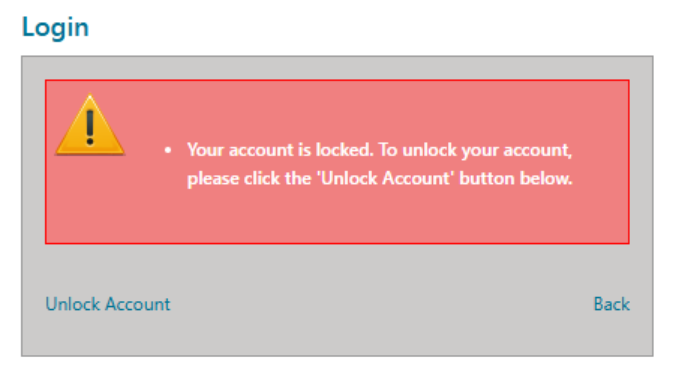
1 | After 5 incorrect password attempts are entered, the account will automatically lock for privacy and security reasons. You will see a message "Your account is locked. To unlock your account, please click the 'Unlock Account' button below": |
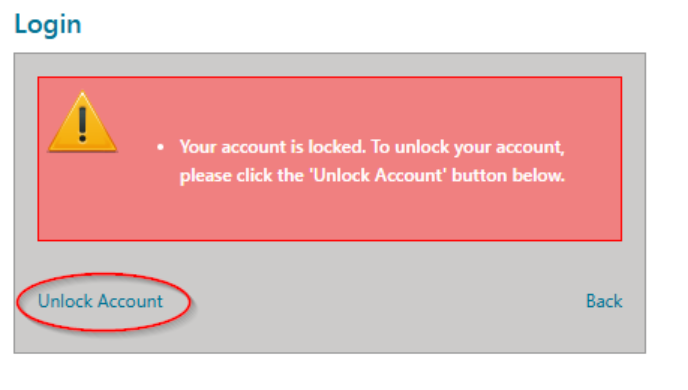
2 | On the login screen, locate the Unlock Account option and select:
|
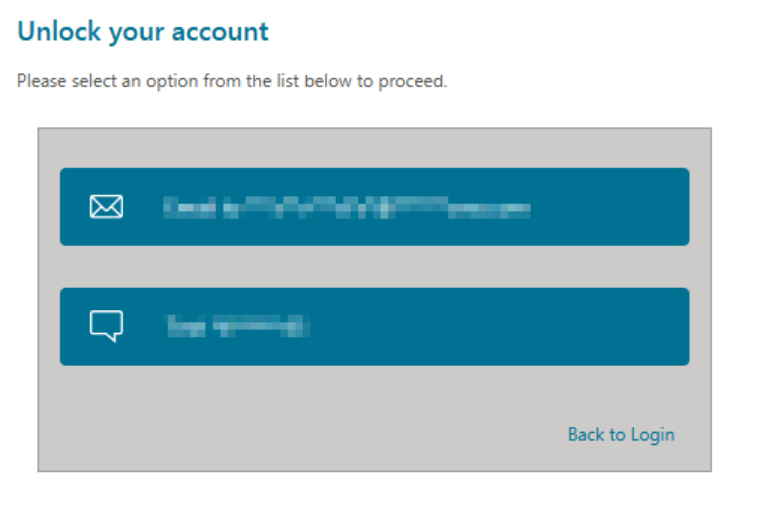
3 | Once you have requested to unlock your account, you will be prompted to choose how you want to receive your one-time passcode (OTP):
NOTE: Email is always available; SMS only appears if a verified mobile number is on file.
Your contact details (email address and phone number) are partially masked for security purposes.
Select your preferred delivery method and continue. |
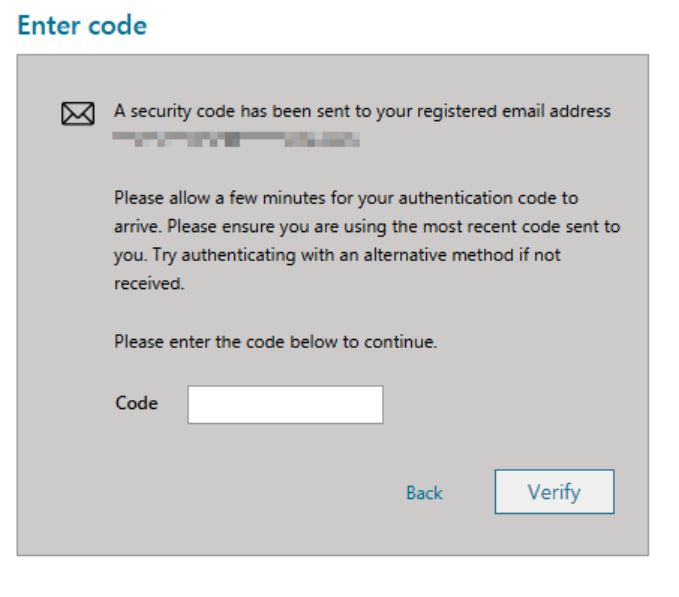
4 | Check your email inbox or mobile device for the OTP. NOTE: OTP delivery may take up to approximately one minute. Please wait before requesting another code. If you requested multiple codes, use the most recent code sent to you. Enter the code into the box provided on the screen then select Verify.
|
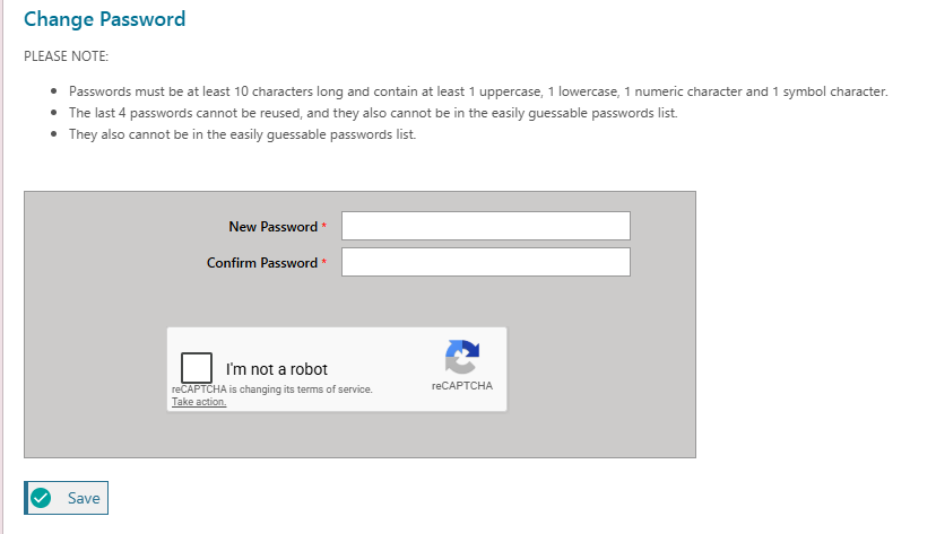
5 | Enter your new password in the New Password field. Re-enter the same password in the Confirm Password field. NOTE: - Passwords must be at least 10 characters long and contain at least 1 uppercase, 1 lowercase, 1 numeric character, and 1 symbol character. - The last 4 passwords cannot be reused, and they also cannot be in the easily guessable passwords list. - They also cannot be in the easily guessable passwords list.
Select I'm not a robot and follow the prompts. Once the box has a green tick you can proceed by selecting Save to confirm the changes. |
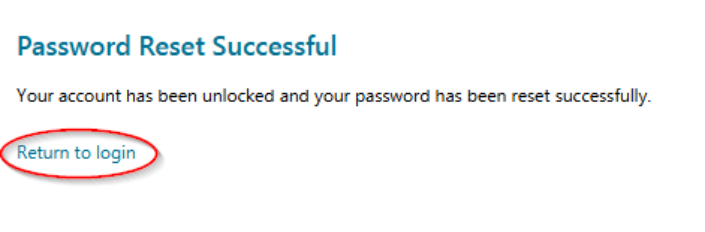
6 | Once your password has been successfully updated, A confirmation message will appear. You will be returned to the login screen.
A confirmation email will be sent to your email address. All existing active sessions will be signed out automatically. You can now log in using your new password. NOTE: For security purposes, there is a retry limit for OTP validation attempts.
After 5 unsuccessful attempts, the unlock link will disappear temporarily.
A message will display indicating the retry limit has been reached.
If this occurs, wait and try again later or contact the Service Desk if additional assistance is needed. |
Article link:
https://support.riw.net.au/support/solutions/articles/51000157612
Did you find it helpful? Yes No
Send feedback